Building Images with a Dockerfile
◢ This post is also available in: 日本語
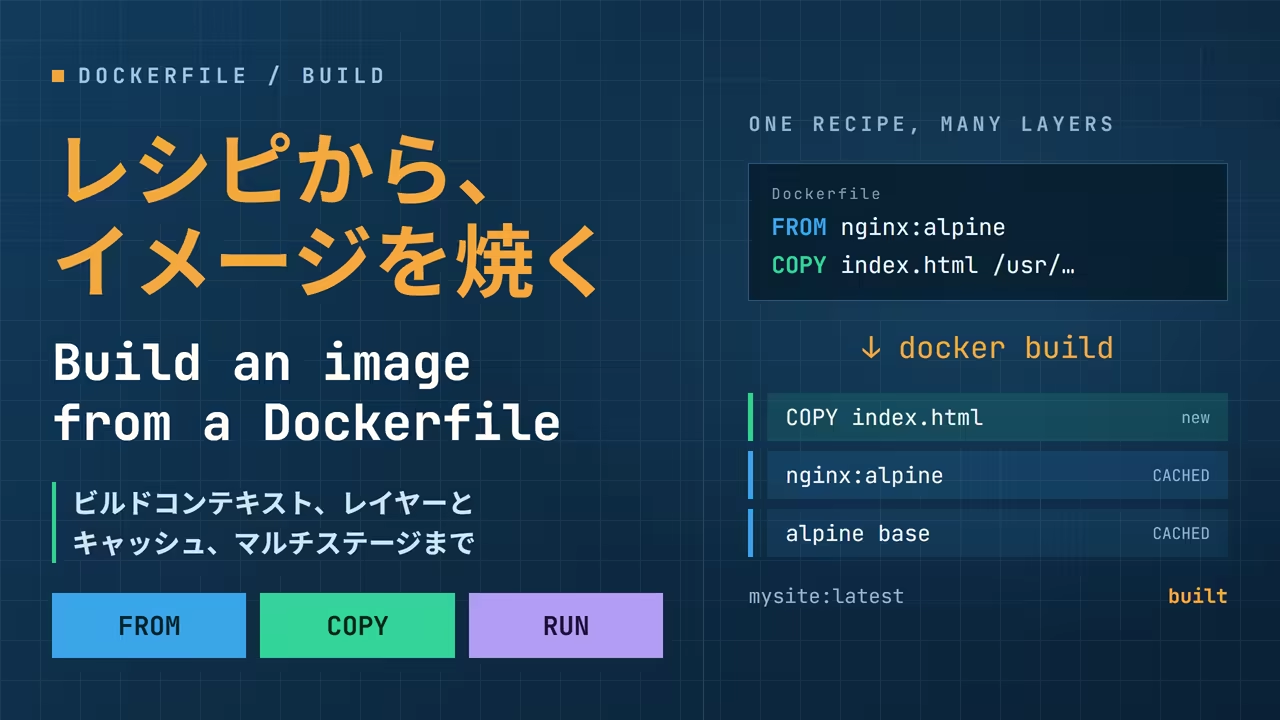
Where the last post left off
Last time it was all docker run on images somebody else
had built. It ended with a page copied into an nginx container with docker cp, and the page
vanishing along with the container.
This time that page gets baked into an image. The recipe for an image is a Dockerfile, and
docker build turns the recipe into an image. A two-line Dockerfile first, to see the
mechanics, then a real 70-line one to read, build and run. The subject is
EmDash, the CMS Cloudflare published as its "successor to WordPress".
A two-line Dockerfile
Put the same HTML as last time's site/index.html in a directory called mysite. Next to it,
create a file named Dockerfile with these two lines.
❯ ls
Dockerfile
index.html
❯ cat Dockerfile
FROM nginx:1.29-alpine
COPY index.html /usr/share/nginx/html/index.htmlFROMmeans "start from this image". It stacks on top of the nginx image from last timeCOPYmeans "put this local file at this path in the image"
So the recipe is "the nginx image plus one index.html". docker build builds it. -t mysite
names the resulting image, and the trailing . means "hand this directory over as the material"
(more on that below).
❯ docker build -t mysite .
#1 [internal] load build definition from Dockerfile
#1 DONE 0.3s
#2 [internal] load metadata for docker.io/library/nginx:1.29-alpine
#2 DONE 6.9s
#4 [internal] load .dockerignore
#4 DONE 0.2s
#6 [internal] load build context
#6 transferring context: 203B 0.2s done
#6 DONE 0.6s
#5 [1/2] FROM docker.io/library/nginx:1.29-alpine@sha256:5616878291a2eed594aee8db4dade5878cf7edcb475e59193904b198d9b830de
#5 DONE 15.8s
#7 [2/2] COPY index.html /usr/share/nginx/html/index.html
#7 DONE 1.3s
#8 exporting to image
#8 naming to docker.io/library/mysite:latest 0.0s done
#8 DONE 2.5s[1/2] and [2/2] are the two lines of the Dockerfile. It reads as: fetch the nginx image with
FROM, put index.html on top with COPY, save the result under the name mysite:latest.
Start a container from the new image. The same docker run as last time, with mysite as the
image.
❯ docker run -d --name web -p 8080:80 mysite
284a718c3d9f0fa0a8d75d3b31cbd97374d013f96ed89ef9bd4ad4841d9e7038
❯ curl -s http://localhost:8080/ | grep -o "<title>.*</title>"
<title>Hello from a container</title>Your own page, from the first request. Now do what the last post did: remove the container and start another.
❯ docker rm -f web
web
❯ docker run -d --name web -p 8080:80 mysite
da81ae157bf62e01aa1d911bc8e2563d8f3fbd7f21aba70e867618055f710dc4
❯ curl -s http://localhost:8080/ | grep -o "<title>.*</title>"
<title>Hello from a container</title>This time it stays. Last time's docker cp only put the file in the container's writable layer,
so it went with the container. This time the file is in the image itself, so every container
started from that image has it from the start. The rule of thumb: if what you want to change is
part of the app, bake it into the image; if it is data, put it in a volume.
One more layer
docker history shows which step produced each part of an image.
❯ docker history mysite
CREATED BY                                       SIZE
COPY index.html /usr/share/nginx/html/index.…   24.6kB
RUN /bin/sh -c set -x     && apkArch="$(cat …   51.8MB
ENV ACME_VERSION=0.3.1                           0B
ENV NJS_RELEASE=1 0BThe top entry is the 24.6 kB layer this COPY created. Everything below it belonged to the nginx
image already. An image is a stack of layers, and each line of a Dockerfile becomes one
layer. The eight Pull complete lines when nginx was pulled last time were this stack arriving
one layer at a time.
The second build is fast
Run the same docker build again and it finishes in a moment.
❯ docker build -t mysite .
#5 [1/2] FROM docker.io/library/nginx:1.29-alpine@sha256:5616878291a2eed594aee8db4dade5878cf7edcb475e59193904b198d9b830de
#5 DONE 1.3s
#6 [2/2] COPY index.html /usr/share/nginx/html/index.html
#6 CACHED
#7 DONE 2.6s[2/2] is CACHED. The step and the file it copies are the same as last time, so Docker reused
the layer it built then. This is the build cache, and it matters once we get to the real
Dockerfile.
Dockerfile instructions
Before reading the real Dockerfile, here are the instructions it uses.
| Instruction | Meaning |
|---|---|
FROM image | start from this image; AS name names the stage |
WORKDIR /path | the working directory for the instructions that follow; created if missing |
COPY src dst | put files from the build context into the image; --from=stage takes them from another stage instead |
RUN command | run a command inside the image and keep the result as a layer |
ENV KEY=value | an environment variable for when the container starts |
EXPOSE port | declares the port the image uses; connecting it with -p is a separate step |
CMD ["cmd", "arg"] | the command to run when the container starts; anything after the image name on docker run overrides it |
ENV, EXPOSE and CMD decide not what is in the image but how it behaves when started. nginx
started by itself last time with docker run -d --name web -p 8080:80 nginx:1.29-alpine because
the nginx image carries a CMD, and docker run --rm node:22-slim node -v ran node -v because
what came after the image name overrode that CMD.
The build context
The . in docker build . is the build context. Docker sends the whole contents of that
directory to the engine, and COPY can only take files from there.
The engine lives inside the Linux VM, so this really is a transfer. The transferring context: 203B in the output above was exactly that: Dockerfile and index.html, 203 bytes between
them. With a node_modules or a .git in there, hundreds of megabytes would travel to the VM on
every build.
.dockerignore prevents that. The one in the EmDash repository shows the intent.
node_modules
**/node_modules
**/dist
.git
.github
.changeset
.vscode
slidev
Locally installed dependencies, build output, Git history, CI configuration. All of it is either rebuilt inside the image or not needed at all.
Press a .dockerignore line to switch it off, and what it was keeping out goes on the wire.
.dockerignore
Your directory
- Dockerfilesent
- index.htmlsent
- node_modulesDependencies installed here. Hundreds of MBkept out by node_modules
- packages/core/node_modulesThe workspace has its ownkept out by **/node_modules
- distkept out by **/dist
- .gitHistory. The image does not need itkept out by .git
What reaches the engine
Dockerfile index.html
2 of 6 entries are sent to the engine
Building EmDash
Now the main event. EmDash is a CMS written in TypeScript on top of Astro, and it runs on
Cloudflare Workers or on Node.js with SQLite. Its official repository has a Dockerfile, it has
data that belongs in volumes (SQLite and uploads), and it has an admin UI you can click around
in. As a subject for a build, it is the right size and shape.
What ran here is the repository at commit f67a120 (2026-09-19, core package 0.38.0). It moves
fast, so details may differ by the time you read this.
Clone the repository and build. -t emdash and the . are as before.
git clone https://github.com/emdash-cms/emdash.git
cd emdash❯ docker build -t emdash .
#1 [internal] load build definition from Dockerfile
#1 DONE 0.3s
#2 [internal] load metadata for docker.io/library/node:22-slim
#2 DONE 3.5s
#4 [internal] load .dockerignore
#4 DONE 0.3s
#5 [internal] load build context
#5 DONE 19.3s
#6 [base 1/3] FROM docker.io/library/node:22-slim@sha256:48e4b67d85f87bd551df43704e24d252f56cc5f8e9718841aace50f19948f0f9
#6 CACHED
#8 [base 2/3] RUN corepack enable && corepack prepare pnpm@10.28.0 --activate
#8 DONE 38.5s
#9 [base 3/3] WORKDIR /app
#9 DONE 0.5s
#10 [deps 1/10] RUN apt-get update && apt-get install -y --no-install-recommends python3 make g++ && rm -rf /var/lib/apt/lists/*
#10 DONE 149.7s
#11 [deps 2/10] COPY pnpm-lock.yaml pnpm-workspace.yaml package.json ./
#11 DONE 0.8s
#12 [deps 3/10] COPY patches/ patches/
#12 DONE 0.5s
#13 [deps 4/10] COPY packages/ packages/
#13 DONE 15.7s
#14 [deps 5/10] COPY templates/ templates/
#14 DONE 2.8s
#15 [deps 6/10] COPY demos/ demos/
#15 DONE 1.0s
#16 [deps 7/10] COPY docs/package.json docs/package.json
#16 DONE 0.3s
#17 [deps 8/10] COPY e2e/fixture/package.json e2e/fixture/package.json
#17 DONE 0.3s
#18 [deps 9/10] RUN sed -i '/slidev/d' pnpm-workspace.yaml
#18 DONE 2.5s
#19 [deps 10/10] RUN pnpm install --frozen-lockfile
#19 DONE 1592.3s
#20 [build 1/8] COPY . .
#20 DONE 54.5s
#21 [build 2/8] RUN sed -i '/slidev/d;/verifyDepsBeforeRun/d' pnpm-workspace.yaml
#21 DONE 1.9s
#22 [build 3/8] RUN sed -i 's|file:./data.db|file:./data/data.db|' templates/blog/astro.config.mjs
#22 DONE 1.5s
#23 [build 4/8] RUN pnpm build && pnpm --filter @emdash-cms/template-blog build
#23 DONE 1161.6s
#24 [build 5/8] RUN NODE_OPTIONS=--max-old-space-size=4096 pnpm --filter @emdash-cms/template-blog deploy /deploy --prod --legacy
#24 DONE 601.3s
#25 [build 6/8] RUN cp -r /app/templates/blog/dist /deploy/dist
#25 DONE 25.7s
#26 [build 7/8] RUN cp -r /app/templates/blog/seed /deploy/seed
#26 DONE 1.6s
#27 [build 8/8] RUN cp /app/templates/blog/astro.config.mjs /deploy/astro.config.mjs
#27 DONE 1.9s
#28 [stage-3 3/4] COPY --from=build /deploy .
#28 DONE 144.8s
#29 [stage-3 4/4] RUN mkdir -p data uploads && ln -s /app/node_modules/.pnpm/node_modules/kysely /app/node_modules/kysely
#29 DONE 3.6s
#30 exporting to image
#30 naming to docker.io/library/emdash:latest 0.0s done
#30 DONE 253.9sMarkers like [deps 10/10] say which stage and which step you are in, and the DONE 1592.3s at
the end of a line is how long that step took. There are four stages, base, deps, build and
stage-3, and that is a multi-stage build (more below).
This run took 70 minutes: 26 for pnpm install, 19 for pnpm build, 10 for pnpm deploy.
Those numbers come from a build with no cache, on a thin connection with pnpm's concurrency
turned down to 4 (see "Traps I actually hit"), while the same machine
was doing other work. The same Dockerfile built on an idle machine took 5½ minutes for
pnpm install and 8 for pnpm build. Build times depend on where you build.
The resulting image is 1.1 GB.
❯ docker images emdash
REPOSITORY   TAG       IMAGE ID       SIZE
emdash latest 55db89995612 1.1GBReading the Dockerfile
Here is EmDash's Dockerfile, cut down to the essentials.
FROM node:22-slim AS base

RUN corepack enable && corepack prepare pnpm@10.28.0 --activate
WORKDIR /app

# ---- Install dependencies ----
FROM base AS deps

COPY pnpm-lock.yaml pnpm-workspace.yaml package.json ./
COPY packages/ packages/
COPY templates/ templates/
RUN pnpm install --frozen-lockfile

# ---- Build ----
FROM deps AS build

COPY . .
RUN pnpm build && pnpm --filter @emdash-cms/template-blog build
RUN pnpm --filter @emdash-cms/template-blog deploy /deploy --prod --legacy

# ---- Runtime ----
FROM node:22-slim

WORKDIR /app
COPY --from=build /deploy .
RUN mkdir -p data uploads

ENV HOST=0.0.0.0
ENV PORT=4321
EXPOSE 4321

CMD ["node", "./dist/server/entry.mjs"]
Copy what rarely changes first
Look at the deps stage. Before the whole repository is copied, only pnpm-lock.yaml and
package.json are copied and pnpm install runs. The build stage is the first to copy all the
sources with COPY . ..
This is for the build cache. The cache reuses a step when the step and every step before it are
the same as last time, so if a single byte of a COPY'd file changes, everything from that line
down is redone. Source code changes every day; the lockfile changes now and then. Copying only the
lockfile first and getting the heaviest step, pnpm install, out of the way means that a rebuild
after editing source skips pnpm install as CACHED.
That is exactly what happened while writing this: the Dockerfile was fixed and rebuilt several
times, and from the second build on it looked like this.
❯ docker build -t emdash .
...
#19 [deps 10/10] RUN pnpm install --frozen-lockfile
#19 CACHED
#20 [build 1/8] COPY . .
#20 DONE 4.5s
...Click a line to change the file it copies. The switch above reorders the same four lines.
COPY . . changed, so it and the steps below it are redone: 2 steps, 8m 5s
Multi-stage builds
FROM appears four times. base → deps → build stack up, and then the last
FROM node:22-slim starts over from a clean Node image and brings in only the build output
with COPY --from=build /deploy ..
deps and build contain python3, g++, development dependencies and the whole source tree.
None of that is needed in the final image. docker history confirms it.
❯ docker history emdash --format 'table {{.CreatedBy}}\t{{.Size}}'
CREATED BY                                       SIZE
CMD ["node" "./dist/server/entry.mjs"]           0B
EXPOSE [4321/tcp]                                0B
ENV PORT=4321                                    0B
ENV HOST=0.0.0.0                                 0B
RUN /bin/sh -c mkdir -p data uploads     && …   20.5kB
COPY /deploy . # buildkit                        641MB
WORKDIR /app                                     8.19kB
...The 641 MB COPY /deploy . is EmDash itself (the built app and its production node_modules);
everything below is plain node:22-slim. Not a byte of python3, g++ or source code made it
into the final image.
Running it
With the image built, start it. From here on it is the last post applied.
Using the CLI inside the image
EmDash wants an EMDASH_ENCRYPTION_KEY environment variable to encrypt plugin secrets. The key
comes from EmDash's own emdash secrets generate, but installing EmDash locally just for that
would defeat the point. The CLI is inside the image, so start a throwaway container with
docker run --rm and call it there. This is last time's "anything after the image name runs
instead of CMD", put to use.
❯ docker run --rm emdash node_modules/.bin/emdash secrets generate
emdash_enc_v1_PQ0B3ivmoMq9stOewK6wkw_4FGwAvRK3S0zBCP29lJw

EmDash encryption key generated.

Set EMDASH_ENCRYPTION_KEY in your environment.
For Cloudflare deployments, push it to your Worker's secrets.
For Node deployments, add it to your process environment or .env file.

Keep this value secret. Losing it means losing every secret encrypted with it.Starting it
Remember the end of the Dockerfile: EXPOSE 4321 and ENV PORT=4321, so 4321 is the port to
connect. The data goes to /app/data (SQLite) and /app/uploads, so named volumes attach there.
❯ docker volume create emdash-data
emdash-data
❯ docker volume create emdash-uploads
emdash-uploads
❯ docker run -d --name emdash -p 4321:4321 -e EMDASH_ENCRYPTION_KEY=emdash_enc_v1_... \
    -v emdash-data:/app/data -v emdash-uploads:/app/uploads emdash
88254b6d6c18065376170dd50289e3b110739f69ccf369048dd64835c9ff4193Open http://localhost:4321/_emdash/admin/ and a fresh install redirects to the setup wizard:
site name, email address, passkey registration, three steps, with a Windows Hello prompt on
Windows. Once the dashboard opens, write one post under Posts and publish it.
❯ curl -s -o /dev/null -w '%{http_code}\n' http://localhost:4321/posts/hello-from-a-container
200Rebuild the image, restart the container
A confession about the transcript in "Building EmDash": it is from a build
made later, from scratch with --no-cache. So although the name emdash is the same, the image
is not the one that was running when the post was written. Remove the container and start one
from that new image, on the same volumes.
❯ docker images emdash
REPOSITORY   TAG       IMAGE ID       SIZE
emdash       latest    55db89995612   1.1GB
❯ docker rm -f emdash
emdash
❯ docker run -d --name emdash -p 4321:4321 -e EMDASH_ENCRYPTION_KEY=emdash_enc_v1_... \
    -v emdash-data:/app/data -v emdash-uploads:/app/uploads emdash
8fc56333248c59358937480bbf1d06556fe6a5911444c6153dad68319a0846c1
❯ docker logs emdash
10:30:04 [@astrojs/node] Server listening on
  local: http://localhost:4321
  network: http://172.17.0.2:4321
❯ curl -s -o /dev/null -w '%{http_code}\n' http://localhost:4321/posts/hello-from-a-container
200The container started from the new image serves the post written in the old one, because the data is in the volumes and not in the image. Updating the app means rebuilding the image and restarting the container, nothing more. That is what "containers are disposable, data lives in volumes" from the last post looks like from the side that builds the images.
Traps I actually hit
The Dockerfile does not build as it is
The Dockerfile at commit f67a120 stopped at pnpm build.
❯ docker build -t emdash .
...
#23 [build 4/8] RUN pnpm build && pnpm --filter @emdash-cms/template-blog build
#23 3.099 [ERR_PNPM_VERIFY_DEPS_BEFORE_RUN] The workspace structure has changed since last install
#23 3.099
#23 3.099 Run "pnpm install"
#23 ERROR: process "/bin/sh -c pnpm build && pnpm --filter @emdash-cms/template-blog build" did not complete successfully: exit code: 1The cause is the structure we saw in "Copy what rarely changes first". The deps stage copies
only the workspace members the blog template needs (packages/, templates/, demos/ and so
on) and runs pnpm install. The build stage's COPY . . then brings in the whole repository,
including the members that joined the workspace after the Dockerfile was written in July
(apps/*, fixtures/*, i18n, infra/*). Because pnpm-workspace.yaml sets
verifyDepsBeforeRun: error, pnpm sees a workspace that no longer matches the install and
refuses to run pnpm build.
Nothing in CI builds the Dockerfile, so it had been broken without anyone noticing. The fix is
one addition to the line in the build stage that already edits the same file with sed: drop
that setting too.
 FROM deps AS build

 COPY . .
-RUN sed -i '/slidev/d' pnpm-workspace.yaml
+RUN sed -i '/slidev/d;/verifyDepsBeforeRun/d' pnpm-workspace.yaml
This is where the cache paid off. The change is the second step of the build stage, so the
rebuild took the deps stage's pnpm install as CACHED and only re-ran what came after the
changed line.
Node's heap stops at 2 GB
With that fixed, the next step failed.
❯ docker build -t emdash .
...
#24 [build 5/8] RUN pnpm --filter @emdash-cms/template-blog deploy /deploy --prod --legacy
...
#24 104.7 FATAL ERROR: Reached heap limit Allocation failed - JavaScript heap out of memory
...
#24 ERROR: process "/bin/sh -c pnpm --filter @emdash-cms/template-blog deploy /deploy --prod --legacy" did not complete successfully: exit code: 134Node's heap topped out at 2 GB. My first guess was the Docker Desktop VM's memory (4 GB on this machine), so I raised it to 8 GB under Settings → Resources → Memory and restarted. Same result. Node's default heap limit stayed at 2 GB even with twice the memory.
❯ docker info --format 'Mem={{.MemTotal}}'
Mem=8388595712
❯ docker run --rm node:22-slim node -e 'console.log("heap limit MB:", Math.round(require("v8").getHeapStatistics().heap_size_limit/1048576))'
heap limit MB: 2096So this is not the VM's size: pnpm deploy reads the lockfile of a 69-project workspace, and
2 GB is not enough for that. The fix is to raise the heap limit with NODE_OPTIONS for that one
step.
-RUN pnpm --filter @emdash-cms/template-blog deploy /deploy --prod --legacy
+RUN NODE_OPTIONS=--max-old-space-size=4096 pnpm --filter @emdash-cms/template-blog deploy /deploy --prod --legacy
That got it through.
Editing the Dockerfile invalidates the COPY
After fixing one line of the Dockerfile and rebuilding, everything from COPY . . down was
redone, including the eight-minute pnpm build. The Dockerfile itself is in the build context:
COPY . . copies it too, and its contents changed, so as far as Docker is concerned the copied
files changed.
Listing Dockerfile in .dockerignore takes it out of the context and avoids this. The
Dockerfile still reaches the engine by its own route, so the build is unaffected. A tiny
Dockerfile (just COPY . /src) shows it.
❯ docker build -t ctx-test .        # after adding one comment line to the Dockerfile
#6 [2/3] COPY . /src
#6 DONE 13.6s
❯ echo Dockerfile > .dockerignore
❯ docker build -t ctx-test .        # after changing the comment again
#6 [2/3] COPY . /src
#6 CACHEDEmDash's .dockerignore does not list it, so every fix cost eight minutes.
pnpm times out on a thin connection
Rebuilding from scratch with --no-cache, pnpm install stopped like this.
[WARN] Request took 39786ms: https://registry.npmjs.org/typescript
[WARN] GET https://registry.npmjs.org/vite error (23). Will retry in 10 seconds. 2 retries left.
✗ Lockfile failed supply-chain policy check (2053 entries in 11m 8.2s)
[ERR_PNPM_BROKEN_METADATA_JSON] The operation was aborted due to timeout
EmDash's pnpm-workspace.yaml sets minimumReleaseAge (a supply-chain setting that only accepts
versions published a while ago), and to enforce it pnpm fetches each package's full metadata.
That is 16 MB for typescript and 39 MB for vite. Fetching it for 2053 packages at the default 16
in parallel, on a 10 MB/s connection, pushes single requests past the default 60-second timeout.
This is a pnpm setting rather than a Docker problem, so a local-only addition to
pnpm-workspace.yaml got it through. The deps stage copies that file first, so the
Dockerfile needed no change.
fetchTimeout: 600000
fetchRetries: 5
networkConcurrency: 4
Commands you will use
| Command | What it does |
|---|---|
docker build -t NAME . | build an image from the Dockerfile in the current directory and name it |
docker build --no-cache | build from scratch, ignoring the cache |
docker build --target STAGE | build a multi-stage Dockerfile only up to that stage |
docker history IMAGE | the image's layers, with the step and size behind each |
docker image prune | remove images no tag refers to |
docker builder prune | remove the build cache |
docker system df | disk used by images, containers, volumes and the build cache |
Summary
- A
Dockerfileis the recipe for an image: start withFROM, stack withCOPYandRUN, decide start-up behaviour withCMD - Each line is one layer. Unchanged lines are reused as
CACHED, so put what rarely changes (the lockfile) first and what changes often (the sources) last - The
.indocker build .is the build context, sent whole to the engine;.dockerignorekeeps the junk out - A multi-stage build keeps the build tools out of the final image, and
docker historyshows the effect - Bake app parts into the image; put data in volumes
- Even an official
Dockerfilecan be broken. Read the error, trace which stage and step it came from, and it can be fixed
The next post takes this post's long docker run line and its two docker volume create calls
and writes them down in one configuration file: Docker Compose. EmDash's repository ships a
compose.yaml that says everything this post did in a dozen or so lines.