Getting Started with Containers and Docker
◢ This post is also available in: 日本語
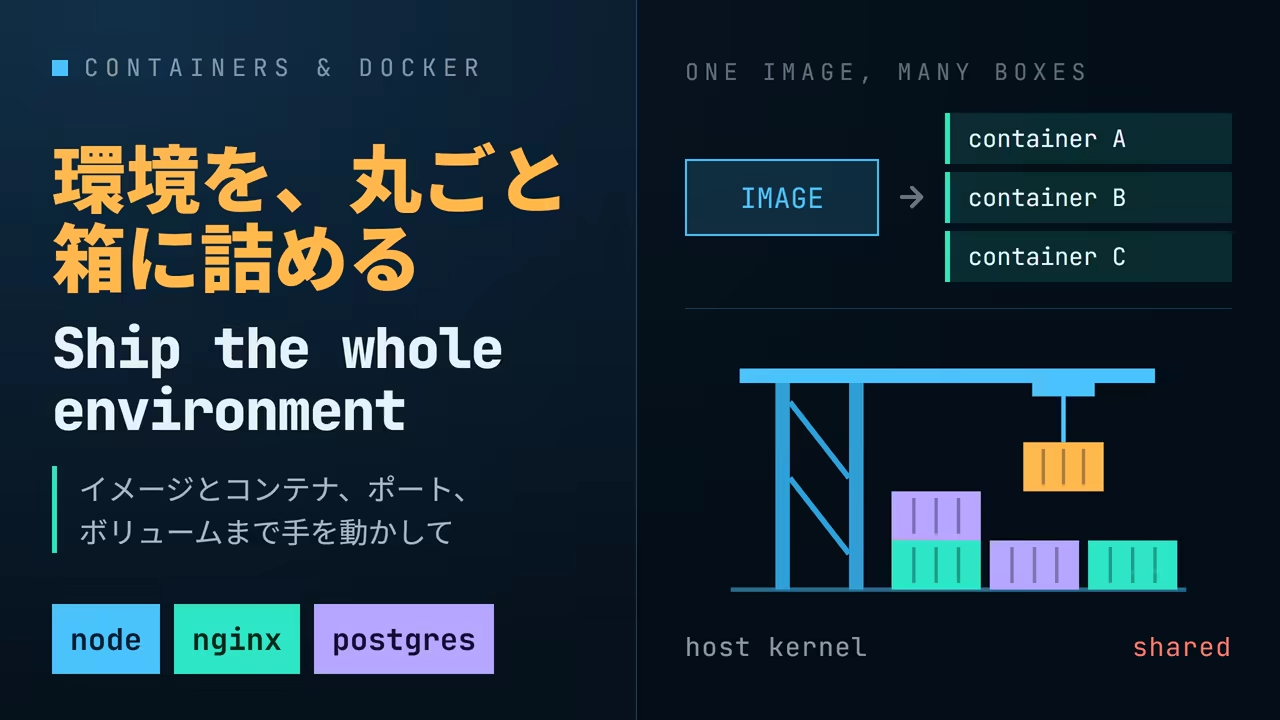
What a container is
The mise article was about tool versions that refuse to line up. mise pins the versions of tools such as Node and Bun, but a tool is as far as it goes. The OS libraries the tool depends on, the configuration files, the environment variables, the directory layout, the database that has to be running before the app starts: the "environment" in "works in my environment" includes all of that.
A container is that whole environment packed into one box that starts the same way anywhere. Inside the box is everything from the OS userland (the files of a Debian or Alpine install) through the runtime and the application code to its configuration. The only thing outside the box is the kernel.
How it differs from a virtual machine
"Carrying the OS along" sounds like a virtual machine, but a container is not one. A virtual machine emulates hardware and boots a whole OS on it, kernel included. A container shares the host's kernel as it is and runs isolated processes on top of it.
That is why a container starts in seconds and is light on disk and memory. Where a virtual machine weighs several gigabytes, container images run from tens to hundreds of megabytes. The Alpine Linux image used in this article is 13 MB.
You can see the shared kernel for yourself. docker run --rm IMAGE COMMAND starts one container
from an image, runs the command inside it, and removes the container when it exits (more on that
below). Debian, Alpine or the official Node image — uname -r returns the same kernel version
from all of them.
❯ docker run --rm debian:bookworm uname -r
7.0.12-linuxkit
❯ docker run --rm alpine uname -r
7.0.12-linuxkit
❯ docker run --rm node:22-slim uname -r
7.0.12-linuxkitlinuxkit is the kernel of the Linux VM that Docker Desktop runs. Windows and macOS have no Linux
kernel, so Docker Desktop boots one lightweight Linux VM and every container shares its kernel. On
a Linux host, containers share the host's own kernel directly.
Images and containers
The one distinction that matters most when working with containers is image versus container.
- An image is the template, baked and read-only. It comes from a registry (Docker Hub, for
one) or is built from a
Dockerfile - A container is an instance started from an image. Processes run in it, files get written to it, and it can be stopped and removed
One image can start any number of containers, and removing a container leaves the image in place.
With that relationship in mind, most Docker commands read themselves: docker build and
docker pull make or fetch an image, docker run starts a container from an image, docker ps
lists containers, docker images lists images.
What containers buy you
Rather than list abstract benefits, here are the four this article demonstrates in its second half.
- Try things without polluting the machine. Node runs on a machine with no Node installed. When you are done, nothing is left behind
- The same image goes to production. The exact bytes that ran on your machine run there too, so "it worked on my machine" does not happen
- Several versions live side by side. Node 20 and Node 22 run on the same machine at the same time
- Removal is instant. Containers, images and volumes each go with one command and leave nothing behind
Installing Docker
Docker is a set of tools for building and running containers: the engine that runs them
(dockerd), the CLI that talks to it (docker), and a registry that holds images (Docker Hub).
On Windows and macOS you install Docker Desktop, which bundles the Linux VM management, the CLI and a GUI. On Windows it needs Windows 11 23H2 or later (or Windows 10 22H2), a 64-bit CPU with SLAT, 8 GB of RAM, hardware virtualisation enabled in the BIOS/UEFI, and WSL 2.1.5 or later. Run the installer and keep the default WSL 2 backend.
Once it is in, docker version should report both a client and a server.
❯ docker version
Client:
 Version:           29.8.0
 API version:       1.56
 OS/Arch:           windows/amd64
 Context:           desktop-linux

Server: Docker Desktop 4.91.0 (239619)
 Engine:
  Version:          29.8.0
  API version:      1.56 (minimum version 1.40)
OS/Arch: linux/amd64The client is windows/amd64 and the server is linux/amd64: that is the picture from above. The
CLI runs on Windows; the engine lives inside the Linux VM.
Run one line first
With Docker installed, type this. docker run starts a container from an image; node:22-slim
is the image, and node -v after it is the command to run inside the container. --rm removes
the container once the command exits.
❯ docker run --rm node:22-slim node -v
Unable to find image 'node:22-slim' locally
22-slim: Pulling from library/node
Digest: sha256:48e4b67d85f87bd551df43704e24d252f56cc5f8e9718841aace50f19948f0f9
Status: Downloaded newer image for node:22-slim
v22.23.2This machine has no Node installed, and yet v22.23.2 came back. Step by step:
- The image
node:22-slimwas not on the machine, so it was fetched from Docker Hub (Pulling from library/node) - One container was started from it, and
node -vran inside - The output was printed and the container exited
- Because of
--rm, the exited container was removed on the spot
Run it again and only v22.23.2 comes back, instantly, because the image is now local. Node 20
works the same way.
❯ docker run --rm node:20-slim node -v
v20.20.2Two versions live on the same machine, and neither is "installed". docker images lists what is
on the machine.
❯ docker images
REPOSITORY   TAG       IMAGE ID       SIZE
node         22-slim   48e4b67d85f8   329MB
node         20-slim   2cf067cfed83   293MB
alpine latest 294b683cb724 13MBThe 22-slim in node:22-slim is the tag, which picks a version or variant of the same
node image. slim is Node on a minimal Debian, without even ps. That is fine, because a
container only needs what its application needs.
Start a web server
Instead of running one command and exiting, let us start a container that keeps running in the
background. The subject is nginx. Three options join the docker run from before.
| Option | Meaning |
|---|---|
-d | detach: run in the background and return the terminal at once |
--name web | name the container; without it you get a random name |
-p 8080:80 | connect the host's port 8080 to the container's port 80 (host:container) |
nginx:1.29-alpine | the image to start |
There is no command after the image name because the nginx image carries a default command: "when started, run nginx".
❯ docker run -d --name web -p 8080:80 nginx:1.29-alpine
Unable to find image 'nginx:1.29-alpine' locally
1.29-alpine: Pulling from library/nginx
aee4e54b3865: Pulling fs layer
6a0ac1617861: Pulling fs layer
...
6a0ac1617861: Pull complete
82736a35d0e7: Pull complete
583599bb7d38: Pull complete
aee4e54b3865: Pull complete
781ff50d2644: Pull complete
453da7dbc73e: Pull complete
4a8b0b2a5b19: Pull complete
612c0c1df4c5: Pull complete
Digest: sha256:5616878291a2eed594aee8db4dade5878cf7edcb475e59193904b198d9b830de
Status: Downloaded newer image for nginx:1.29-alpine
bfc5c618a904b2fd5d7f6ac680a8c9a2ea5e251ac3493534f42eff26ebef7aafThere are eight Pull complete lines because the image is made of eight layers. An image is
not one big file but a stack of diffs, and identical layers are shared between images. The long
string at the end is the ID of the container that started. Because of -d, the container keeps
running in the background and the terminal came straight back.
Without -p, the host cannot reach the container even though it is listening on port 80 inside.
A container has its own network namespace; it lives in a separate world from the host. -p opens
a hole in that wall, and only then does http://localhost:8080 get through.
docker ps lists the running containers. Then curl fetches port 8080 from the host side.
❯ docker ps
NAMES     IMAGE               STATUS         PORTS
web       nginx:1.29-alpine   Up 3 seconds   0.0.0.0:8080->80/tcp, [::]:8080->80/tcp
❯ curl -s http://localhost:8080/ | head -5
<!DOCTYPE html>
<html>
<head>
<title>Welcome to nginx!</title>
<style>Open http://localhost:8080 in a browser and nginx's default page appears. nginx is not installed
on Windows. It runs on Alpine Linux inside the Linux VM.
Looking inside
There are three ways to find out what a container is doing.
docker logs shows what the process inside wrote to standard output and standard error. The
curl request from a moment ago is in the access log.
❯ docker logs web
2026/09/20 07:46:01 [notice] 1#1: start worker process 35
2026/09/20 07:46:01 [notice] 1#1: start worker process 36
2026/09/20 07:46:01 [notice] 1#1: start worker process 37
172.17.0.1 - - [20/Sep/2026:07:46:04 +0000] "GET / HTTP/1.1" 200 896 "-" "curl/8.21.0" "-"The 1 in 1#1 is the process ID. Inside a container, the process started by the image's
command is PID 1.
docker exec runs a command inside a running container. Let us see where nginx serves its files
from and which OS it runs on.
❯ docker exec web ls /usr/share/nginx/html
50x.html
index.html
❯ docker exec web cat /etc/os-release | head -1
NAME="Alpine Linux"docker exec -it web sh opens a shell inside the container and lets you walk around freely.
docker top shows the processes inside a container from the outside.
❯ docker top web
PID                 USER                COMMAND
679                 root                nginx: master process nginx -g daemon off;
722                 statd               nginx: worker process
723 statd nginx: worker processServing your own page
Let us serve a local HTML file instead of the default page. docker cp SOURCE CONTAINER:DEST
copies a host file into a container. The /usr/share/nginx/html/index.html seen through
docker exec above gets overwritten with the local site/index.html.
❯ cat site/index.html
<!doctype html>
<meta charset="utf-8">
<title>Hello from a container</title>
<h1>Hello from a container</h1>
<p>This page is served by nginx running in Docker.</p>
❯ docker cp site/index.html web:/usr/share/nginx/html/index.html
❯ curl -s http://localhost:8080/
<!doctype html>
<meta charset="utf-8">
<title>Hello from a container</title>
<h1>Hello from a container</h1>
<p>This page is served by nginx running in Docker.</p>Replaced. Now docker diff shows how the container has diverged from its image.
❯ docker diff web
C /etc
C /etc/nginx
C /etc/nginx/conf.d
C /etc/nginx/conf.d/default.conf
C /var
C /var/cache
C /var/cache/nginx
A /var/cache/nginx/fastcgi_temp
A /var/cache/nginx/proxy_temp
A /var/cache/nginx/scgi_temp
A /var/cache/nginx/uwsgi_temp
A /var/cache/nginx/client_temp
C /usr
C /usr/share
C /usr/share/nginx
C /usr/share/nginx/html
C /usr/share/nginx/html/index.html
C /run
A /run/nginx.pidC is changed, A is added. Besides the copied index.html, there are the configuration file
nginx generated at start-up, its cache directories and its PID file. The image itself is read-only;
a container is the image with one thin writable layer on top, and what docker diff shows is
the contents of that layer.
Remove the container and what you wrote goes with it
That writable layer goes when the container goes. docker rm -f stops a running container and
removes it. Remove it, then start another from the same image.
❯ docker rm -f web
web
❯ docker run -d --name web -p 8080:80 nginx:1.29-alpine
c31743f6370df987b8d0cecadba91e250969249c4e70637bc17dfa88ab02fa87
❯ curl -s http://localhost:8080/ | grep -o "<title>.*</title>"
<title>Welcome to nginx!</title>The default page is back. A new container starts clean from the image's baked state. The copied
index.html existed only in the writable layer of the container that is now gone.
Press a command and watch what survives.
Run
Write
Stop / start
Remove
Container web · Up
Writable layer
Image (read-only) · nginx:1.29-alpine
web is running with index.html in its writable layer
This is not a defect; this is what a container is. It is the other side of "nothing is polluted" and "removal is instant". Containers are disposable, which is exactly why anything that must survive has to live outside them. The database next shows how.
Start a database
Losing a web server's writable layer is harmless; losing a database's is not. PostgreSQL shows how to handle the things that must not disappear.
Started, but not running
First, start it without thinking. The same docker run -d --name as nginx, with the image
postgres:18-alpine.
❯ docker run -d --name db postgres:18-alpine
679092db38ef33b97fb3dabf61da95c364a8c52f514878df5eac8b7e85e1238d
❯ docker ps
NAMES IMAGE STATUSA container ID came back, yet docker ps shows nothing. docker ps only lists running
containers; -a includes the stopped ones.
❯ docker ps -a
NAMES          IMAGE                STATUS
db             postgres:18-alpine   Exited (1) 4 seconds ago
❯ docker logs db
Error: Database is uninitialized and superuser password is not specified.
       You must specify POSTGRES_PASSWORD to a non-empty value for the
superuser. For example, "-e POSTGRES_PASSWORD=password" on "docker run".It exited four seconds ago (the 1 in Exited (1) is the exit code), and the reason is in
docker logs: no password was chosen, so it refused to start. docker run -d returns as soon as
the container is started, so a complaining process inside prints nothing to your terminal. Make
it a habit: after docker run -d, look at docker ps and docker logs.
As instructed, pass the variable with -e. The exited container still holds the name db, so
remove it first.
❯ docker rm db
db
❯ docker run -d --name db -e POSTGRES_PASSWORD=secret postgres:18-alpine
1f8998b931d857319b31dd611fab9ab654b58916681967b375392ace1d6aa721
❯ docker ps
NAMES     IMAGE                STATUS         PORTS
db        postgres:18-alpine   Up 6 seconds   5432/tcp
❯ docker logs db | tail -3
2026-09-20 07:48:49.223 UTC [1] LOG:  listening on Unix socket "/var/run/postgresql/.s.PGSQL.5432"
2026-09-20 07:48:49.229 UTC [65] LOG:  database system was shut down at 2026-09-20 07:48:49 UTC
2026-09-20 07:48:49.237 UTC [1] LOG: database system is ready to accept connectionsThis time it is Up, and the log says ready to accept connections. PORTS reads 5432/tcp
with no -> because no -p was given: the image declares that it uses port 5432, but nothing is
connected to the host. Nothing here needs to reach it from the host, so it stays that way.
Writing data inside
docker exec runs the container's own psql to create a table and insert one row. -U postgres
is the user to connect as and -c runs the single SQL statement that follows; both are psql
options.
❯ docker exec db psql -U postgres -c "CREATE TABLE notes (body text)"
CREATE TABLE
❯ docker exec db psql -U postgres -c "INSERT INTO notes VALUES ('written inside a container')"
INSERT 0 1
❯ docker exec db psql -U postgres -c "SELECT * FROM notes"
            body
----------------------------
 written inside a container
(1 row)Neither PostgreSQL nor psql is installed on this machine. All of it is inside the container.
Remove it and start again
The same as with nginx: remove it with docker rm -f, start it again with the same
docker run, and run the SELECT.
❯ docker rm -f db
db
❯ docker run -d --name db -e POSTGRES_PASSWORD=secret postgres:18-alpine
bd9c6e9bc761a20a9506acee65d3acf62b875f74e3ccd0bdb8eb10567017df6a
❯ docker exec db psql -U postgres -c "SELECT * FROM notes"
ERROR:  relation "notes" does not exist
LINE 1: SELECT * FROM notes
^The table is gone. For a database, that is a problem.
Meanwhile, docker volume ls lists things nobody remembers creating.
❯ docker volume ls
DRIVER    VOLUME NAME
local     115c37a34938ab37c7050ea1319679906cd06bafb9edd24dcb9e0fa0391e82da
local     eecab68902c969ec60d33b1dbcdb1f0214ed72dce6641f788c303f7bfc3248f0
local ef5d8204ad6ea069b0551e7f856938662333dadd5b02085b3fec3842fac130ceThe postgres image declares that /var/lib/postgresql is where its data lives, so even without
-v, Docker moves that directory outside the container as an anonymous volume. But it has no
name, so each new container gets a fresh anonymous volume and the old one is left with nothing
attached to it. These three belong to the three containers started so far: two are orphaned, and
the third is in use by the db running now. The data was not deleted; it was orphaned.
docker volume prune removes the orphans and leaves the ones in use alone.
❯ docker volume prune -f
Deleted Volumes:
115c37a34938ab37c7050ea1319679906cd06bafb9edd24dcb9e0fa0391e82da
eecab68902c969ec60d33b1dbcdb1f0214ed72dce6641f788c303f7bfc3248f0

Total reclaimed space: 40.6MBTo avoid creating orphans, add -v when removing a container: docker rm -v removes the
container's anonymous volumes along with it.
❯ docker rm -f -v db
db
❯ docker volume ls
DRIVER VOLUME NAMENamed volumes — where the things that must survive go
For data that must not disappear, give the volume a name and attach the same one every time.
docker volume create NAME creates it, and -v NAME:PATH-INSIDE-THE-CONTAINER on docker run
attaches it.
❯ docker volume create pgdata
pgdata
❯ docker run -d --name db -e POSTGRES_PASSWORD=secret -v pgdata:/var/lib/postgresql postgres:18-alpine
4c5700d374cafd484d11142554afd361db4b89d55445b128605a1a1cdbf74a78-v pgdata:/var/lib/postgresql means "attach the volume pgdata at /var/lib/postgresql inside
the container". Whatever PostgreSQL writes there actually lands in the volume.
Insert the same row as before, remove the container, and start it again. -c can be repeated, so
the CREATE TABLE and the INSERT share one docker exec.
❯ docker exec db psql -U postgres -c "CREATE TABLE notes (body text)" -c "INSERT INTO notes VALUES ('written inside a container')"
CREATE TABLE
INSERT 0 1
❯ docker rm -f db
db
❯ docker volume ls
DRIVER    VOLUME NAME
local     pgdata
❯ docker run -d --name db -e POSTGRES_PASSWORD=secret -v pgdata:/var/lib/postgresql postgres:18-alpine
fc72c26f2bf7a3b8159af8502ba5b50b4c1d6e2c788cc9362df9c5f70296173c
❯ docker exec db psql -U postgres -c "SELECT * FROM notes"
            body
----------------------------
 written inside a container
(1 row)This time it survived. The container really was removed and created anew, but the new one
reattached the pgdata that docker volume ls still listed, so the data in it is right there.
docker inspect confirms the attachment.
❯ docker inspect db --format "{{range .Mounts}}{{.Type}} {{.Name}} -> {{.Destination}}{{end}}"
volume pgdata -> /var/lib/postgresqlRemove it and start it again. Starting without -v shows where the same write goes instead.
Run
Write
Stop / start
Remove
Container db · Up
Writable layer
Image (read-only) · postgres:18-alpine
Volume
pgdata
/var/lib/postgresql
db is running with pgdata on /var/lib/postgresql
This is the basic shape of data with containers: containers are disposable, data lives in volumes. Upgrading the image to a new version is just starting a new container; the data is still in the volume.
stop is not rm
docker stop only stops the process. The writable layer and the volumes stay, and
docker start carries on where it left off. Restarting Docker Desktop is the same. Things are
only removed by docker rm.
❯ docker stop db
db
❯ docker ps -a
NAMES          STATUS
db             Exited (0) Less than a second ago
❯ docker start db
db
❯ docker exec db psql -U postgres -c "SELECT * FROM notes"
            body
----------------------------
 written inside a container
(1 row)Remove everything
Time to remove everything this article created: containers with docker rm -f, volumes with
docker volume rm, images with docker rmi, in that order — containers, then volumes, then
images — because anything still in use cannot be removed. docker ps -a and docker volume ls
confirm at the end that nothing is left.
❯ docker rm -f db
db
❯ docker volume rm pgdata
pgdata
❯ docker rmi postgres:18-alpine nginx:1.29-alpine node:22-slim node:20-slim alpine
Untagged: postgres:18-alpine
Deleted: sha256:6c538e7206ea40ff740ef27883529390a690b6ead6ba96b44c67a9f7c638e8fd
Untagged: nginx:1.29-alpine
Deleted: sha256:5616878291a2eed594aee8db4dade5878cf7edcb475e59193904b198d9b830de
Untagged: node:22-slim
Deleted: sha256:48e4b67d85f87bd551df43704e24d252f56cc5f8e9718841aace50f19948f0f9
Untagged: node:20-slim
Deleted: sha256:2cf067cfed83d5ea958367df9f966191a942351a2df77d6f0193e162b5febfc0
Untagged: alpine:latest
Deleted: sha256:294b683cb724975bec92580e1e685676bd4b50bda910ddb8c51d4cabeaec77e6
❯ docker ps -a
NAMES          STATUS
❯ docker volume ls
DRIVER VOLUME NAMENeither Node, nginx nor PostgreSQL was ever installed on the host, so that was everything there was to remove. Nothing this article ran is left.
Traps I actually hit
Git Bash rewrites paths
From Git Bash on Windows, passing a path inside the container as an argument can end like this.
❯ docker exec web ls /usr/share/nginx/html
ls: C:/Program Files/Git/usr/share/nginx/html: No such file or directoryGit Bash (MSYS2) converted the container path /usr/share/nginx/html into a Windows path before
handing it over. This has nothing to do with Docker; it is how MSYS2 works. Setting the
environment variable MSYS_NO_PATHCONV=1 turns the conversion off.
❯ MSYS_NO_PATHCONV=1 docker exec web ls /usr/share/nginx/html
50x.html
index.htmlIt does not happen from PowerShell. The transcripts in this article were taken from Git Bash with
MSYS_NO_PATHCONV=1 set.
The Docker Desktop VM has a memory ceiling
Light as containers are, on Windows and macOS they run inside a Linux VM, and that VM's memory is
whatever Docker Desktop's settings say. docker info shows it.
❯ docker info --format 'CPUs={{.NCPU}} Mem={{.MemTotal}}'
CPUs=8 Mem=8388608000This machine is set to 8 GB. The host may have 16 GB, but the world a container sees is these
8 GB. This article's PostgreSQL uses 24 MB by docker stats, but a large build or test suite run
inside a container can get its process Killed with no error message at all. When that happens,
suspect Settings → Resources → Memory.
❯ docker stats --no-stream
NAME      CPU %     MEM USAGE / LIMIT
db 0.13% 23.83MiB / 7.812GiBCommands you will use
| Command | What it does |
|---|---|
docker run --rm IMAGE CMD | start a throwaway container from an image and run CMD once |
docker run -d --name NAME -p H:C -e K=V -v VOL:PATH IMAGE | run in the background with a port, an environment variable and a volume attached |
docker ps / docker ps -a | list running containers / including stopped ones |
docker logs NAME | show a container's stdout and stderr; -f follows |
docker exec NAME CMD / docker exec -it NAME sh | run a command inside a running container / open a shell |
docker top NAME | show a container's processes from the outside |
docker cp SRC NAME:DST | copy files between the host and a container |
docker diff NAME | show the files a container changed relative to its image |
docker stop NAME / docker start NAME | stop / start again (the writable layer stays) |
docker rm -f NAME / docker rm -v NAME | stop and remove (the writable layer goes) / also remove its anonymous volumes |
docker images / docker rmi IMAGE | list images / remove one |
docker volume create / ls / rm / prune | create / list / remove volumes / remove the orphans |
docker inspect NAME | show a container's or image's details as JSON |
docker stats | CPU and memory use per container |
Summary
- A container is an application's "environment" boxed up together with its OS userland. It shares the host's kernel, so it is lighter and faster than a virtual machine
- An image is the baked template and a container is an instance started from it. One image starts any number of containers, and removing a container leaves the image
docker run --rmtries a command once without installing anything. Different Node versions coexist-dsends it to the background,-pconnects a port,-esets an environment variable. After starting, look atdocker psanddocker logs- A container is one writable layer on top of the image.
docker diffshows it anddocker rmremoves it - Containers are disposable. Anything that must survive goes in a named volume; without a name it gets orphaned
- On Windows and macOS, containers live inside Docker Desktop's VM, and both its memory and the folders it can share are settings
So far this has been about using images somebody else built. The next article writes a
Dockerfile and builds an image of its own. The subject is EmDash, the CMS Cloudflare published
as its "successor to WordPress". That is where the build context, layer caching and multi-stage
builds come in: the side that makes images.